


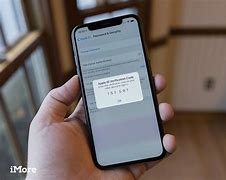
One of the useful, under-the-radar additions to iOS 15 is an integrated 2FA code generator, which makes it easier to log in to accounts with enhanced security. Let’s take a look at how to use the native iOS 15 2FA code generator on iPhone and iPad, which includes autofill.
You’re probably used to generating 2FA codes with a third-party app, such as 1Password, Authy, Google Authenticator, and so on (or using the less-secure SMS 2FA option). With iOS 15, however, there is native integration to generate 2FA codes and autofill them when logging into accounts.
Whether you want to simplify your setup by removing a third-party 2FA app or simply want to try out the iOS 15 native 2FA experience, here’s how to set it up and use it with iPhone and iPad.
This fall, the feature will also be available on Mac with macOS Monterey.
How to Use the 2FA Code Generator + Autofill in iOS 15
Quick option
- Long-press on a website/QR service’s code for 2FA setup in iOS 15 and select Create a Verification Code
- We didn’t always see this option available in our testing, so follow the manual steps below for a guaranteed way to set up iOS 15 2FA codes and autofill.
Option for manual control
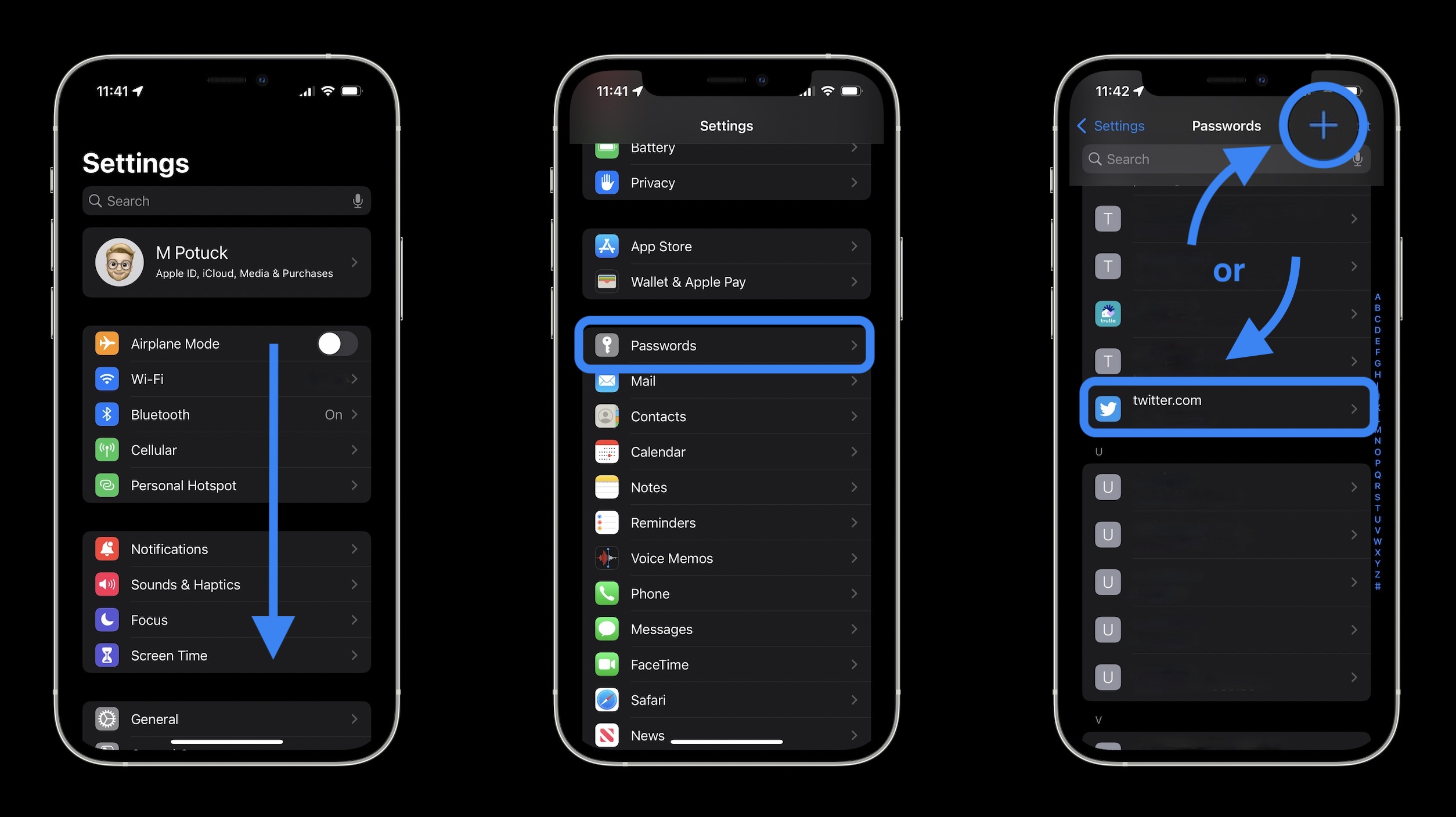
- Open the Settings app on your iPhone or iPad if you’re running iOS 15.
- Swipe down and select Passwords.
- Create a new login/password or use one that already exists.
- Tap Set Up Verification Code at the bottom.
- To finish the setup, enter a setup key or scan a QR code.
- Look in the settings for that service/website (e.g., Twitter’s settings > security > 2FA) to find the QR code to setup 2FA for any given account.
- The 30-second regenerating 2FA codes will now appear for each login item in iOS Settings > Passwords, but they will be autofilled whenever you need to use them in the future.
Pro tip: If you already have 2FA enabled on any accounts, you’ll probably need to turn it off and then back on again to set it up with iOS 15’s native 2FA and autofill integration.
The following is an illustration of the setup procedure:


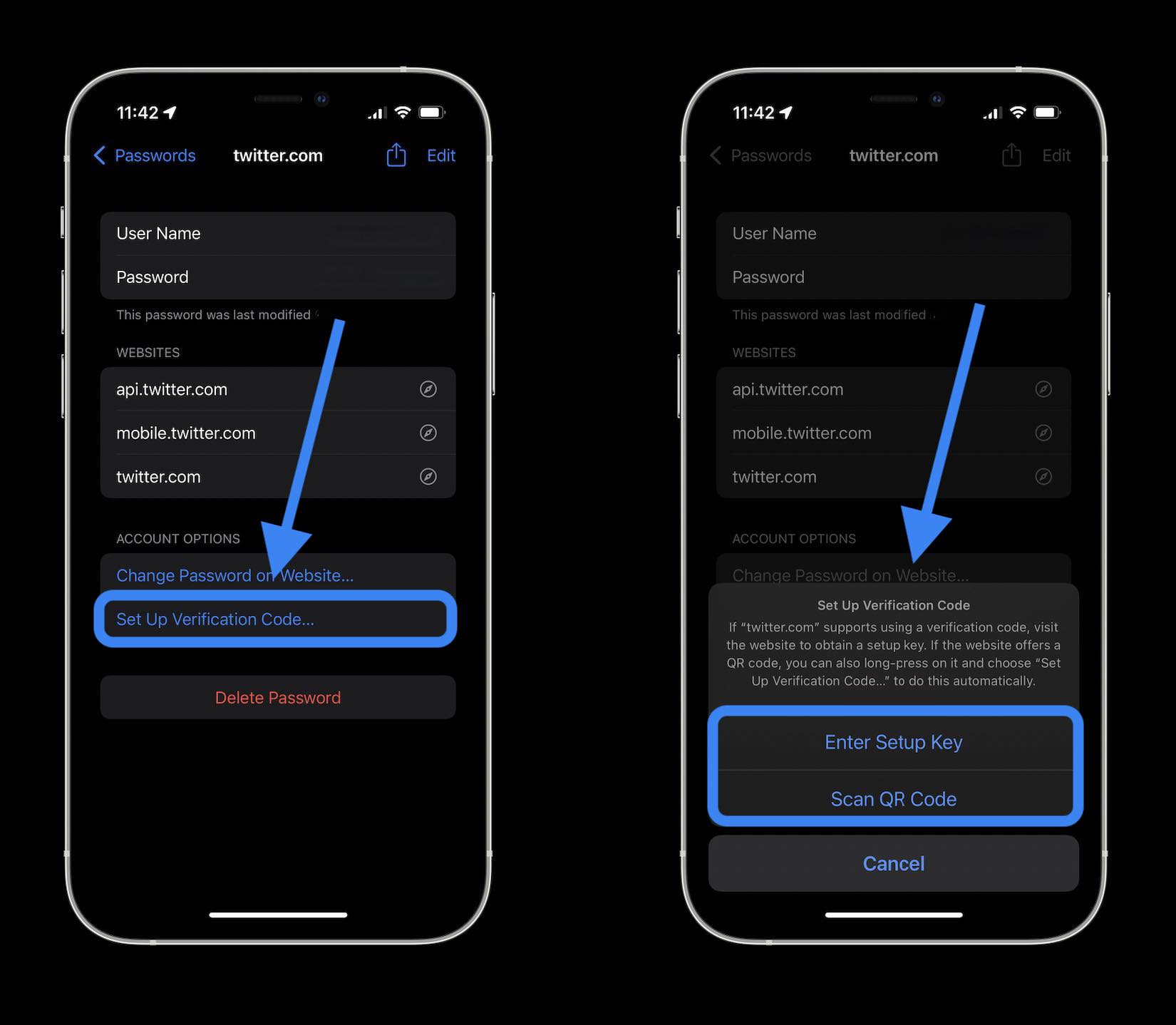
When you’ve finished configuring 2FA via a website/service in iOS 15, you can view the constantly regenerating 6-digit codes in the Settings app > Passwords > select a login.
The best part is that the next time you log in and enter your 2FA code, iOS 15 will autofill it for you.