



We’ll walk you through the easy process of making a voice or video call link on WhatsApp and adding it to your phone’s calendar in this guide, which will help you remember to make the call at the scheduled time.

You can create a call link using WhatsApp on both Android and iPhone smartphones. The call can be joined by tapping this link for anyone who has it. To add individuals to the call, click that link and enter their information.
Additionally, email, Slack, and WhatsApp are other ways that you can send the call link to others. Additionally, you can add the link to a to-do app, notes, calendar, or reminders to receive information about the call at the preferred time.
Make a call link on WhatsApp and add it to your calendar.
Although the fundamentals of iOS and Android are identical, we have broken down each approach into its own sections to make things easier for you.
Open the WhatsApp app on your iPhone, then select Calls from the bottom.
From the top, select Create Call Link.
Click on Call Type and indicate whether you want to plan a voice or video call.
After that, you can:
Send Link via WhatsApp: This allows you to send the call link—which is highlighted in blue above—to your loved ones, coworkers, or friends via WhatsApp. They can call you at any time by tapping it.
Copy Link: Using other apps, you can send the call link that is saved to your iPhone’s clipboard.
Share Link: Clicking this brings up the iOS Share Sheet, where you can select the app you want to use. Use it to distribute the call link via email, messages, or another reminder app.
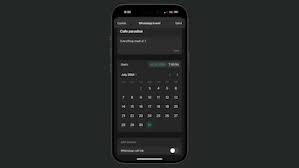
When you select “Add to Calendar,” the iOS Calendar app’s UI opens. Give this calendar event a title, indicate the start and end times, and add any details as needed. Don’t forget to include a suitable Alert option. When the appointed time arrives, simply press Add, and the Calendar app will notify you.
You can tap the green Join button and this calendar notification. As an alternative, tap Join Meeting after touching and holding the alert.
WhatsApp will launch and display the call screen immediately. To add more individuals to this call, tap Join and then press the plus button at the top.
Using an Android handset
- 1) Verify that your phone is loaded with Google Calendar or an appropriate calendar/reminder software.
- 2) Launch WhatsApp, then select Calls at the top.
- 3) Select Make a call link.
- 4) You may select between audio and video calls, just like on iOS. Next, you have the choice to share the call link using WhatsApp or select a different app by tapping on the Share link option. You might not see the necessary app or Google Calendar here, though. Click Copy link now.
- 5) Create an event with a time and date by opening Google Calendar or the relevant software. Copy and paste the WhatsApp call URL into Google Calendar’s “Add description” field.
- 6) Tap the Google Calendar alert as soon as you get it, and then tap the WhatsApp call link.
- 7) Next, hop on the call and invite others.
The effectiveness of making WhatsApp call links and scheduling them with the calendar is limited. It’s not very strong because you can’t add certain call participants in advance. For example, when you’re generating the call link, WhatsApp should have made it easier to add the people you wish to be on the call.