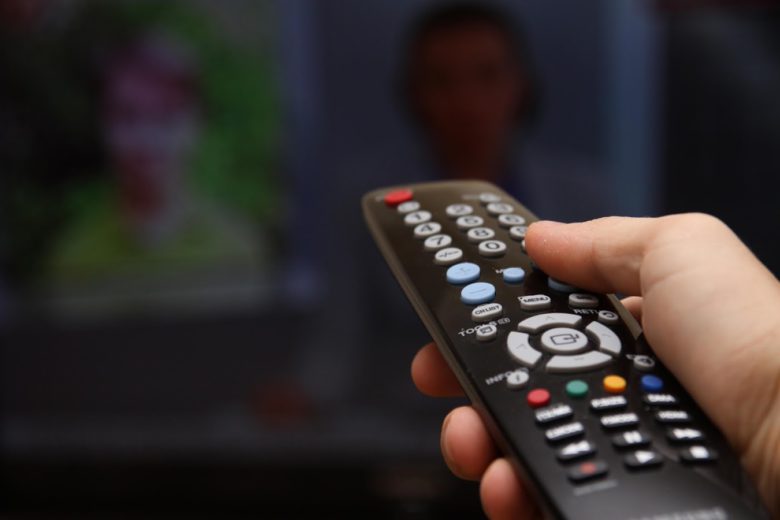
Remote controls are fundamental tools for managing televisions, streaming devices, and sound systems, yet they often encounter technical problems that can disrupt your experience. Whether it is an unresponsive button or a lost connection, understanding proven troubleshooting methods will help you quickly get back to enjoying your entertainment. For Samsung TV owners who need a quick fix, consider a replacement Samsung TV remote if troubleshooting does not resolve the issue.
Timely maintenance and knowing how to address minor glitches can prevent the need for professional intervention. By using simple do-it-yourself techniques, you can typically revive your remote control and restore seamless operation to your electronic devices. This article outlines the best practices for diagnosing and correcting the most common remote control malfunctions and reviews alternative solutions that can serve in a pinch.
Check and Replace Batteries
Battery problems top the list of remote control complaints, accounting for a significant portion of malfunctions. When your remote suddenly stops functioning or responds intermittently, replace the old batteries with a new pair. Be mindful of battery orientation; inserting batteries incorrectly is a frequent oversight. It is recommended to use high-quality batteries to extend operational life and lessen the need for frequent changes. According to Wirecutter’s battery guide, investing in proven brands can make a substantial difference in performance.
Ensure a Clear Line of Sight
Infrared (IR) remote controls require an unobstructed line of sight between the remote and the maintenance receiving sensor on your device. Further, the longevity of remote controls or electronics in line of sight can interfere with signal transmission. To maximize effectiveness, make sure you are within the optimal distance (usually 6 to 9 feet for most remotes) and that nothing blocks the remote from the device’s sensor. This is especially important for media rooms or entertainment centers, where devices are often hidden behind cabinet doors.
Clean the Remote and Device Sensors
Dust, grime, or greasy fingerprints can accumulate on both the remote’s IR emitter and the receiving sensor on your devices. This buildup can obstruct the signal, leading to diminished response or outright failure. Regularly wiping the emitter window on your remote, as well as the sensor panel of your television or set-top box, with a soft, clean cloth will help sustain optimal performance. Avoid using harsh cleaning agents, as they can degrade plastics and potentially damage sensitive components.
Reset the Remote Control
When standard solutions fall short, a reset often provides a fresh start. Begin by removing the batteries from the remote. Press and hold the power button for around 10 seconds to discharge any residual power stored in the remote’s circuitry. Afterward, reinsert the batteries and test the remote’s responsiveness. This simple action can clear minor errors or glitches that develop in the remote’s memory over time.
Re-Pair the Remote with the Device
Many modern remotes use Bluetooth or radio-frequency (RF) signals instead of IR signals. If the remote has become unpaired from its device after a firmware update, battery change, or power surge, you should refer to your device’s user manual for specific re-pairing instructions. Manufacturers often require a button sequence or menu command to establish a new connection. Following these steps can restore full command functionality.
Test the Infrared Emitter
To determine if the IR emitter is transmitting, point the remote at the lens of a digital or smartphone camera. When you press any remote button, look at the camera display for a flashing light at the IR emitter tip. Human eyes cannot see this wavelength, but most cameras can. If there is no light, the remote’s emitter or circuit may be damaged, and repair or replacement will be necessary. Additional guidance on this method can be found in resources like TechRadar’s troubleshooting guide.
Address Interference from Other Devices
Many everyday household electronics emit wireless signals that may interfere with your remote control’s communication with your entertainment system. Devices such as cordless phones, microwave ovens, Wi-Fi routers, and even Bluetooth equipment often operate on overlapping radio frequencies, increasing the likelihood of signal disruption. To minimize interference, position these electronics away from your TV or media center. If your remote continues to respond inconsistently, try relocating nearby devices to identify and eliminate the source.
Utilize Smartphone Remote Apps
Device manufacturers are increasingly offering mobile apps that function as virtual remotes, providing a backup when your physical remote breaks or batteries run out. These apps connect via Wi-Fi or Bluetooth and can mirror many of the functions of your original remote. Look for official versions in device app stores. While these digital stand-ins are useful, especially for modern smart TVs, physical remotes remain a convenient long-term solution.
Consistently applying these troubleshooting steps empowers you to fix most remote control issues without professional assistance. Simple actions like checking batteries, cleaning contacts, resetting the device, and ensuring a clear line of sight can often restore functionality within minutes. Developing the habit of proactive maintenance prevents recurring problems and extends the lifespan of your remote. By confidently diagnosing minor issues at home, you save time, avoid unnecessary expenses, and enjoy a smoother, more frustration-free entertainment experience.