


Staring at a blank title slide feels like the clock’s already against you. Fortunately, 2026 is the year Google Slides finally gets practical AI help. Over the past twelve months we’ve tested every slide-building assistant we could find—from Google’s Gemini to scrappy start-ups—and ranked the seven that genuinely cut prep time.
In this guide you’ll see a quick comparison grid, candid pros and cons, and rapid-fire FAQs so you can pick the right tool today and get back to presenting.
How we tested (and why you can trust this list)
We built 42 complete decks with every AI slide tool we could track down. Each test mirrored real work: a sales pitch on Monday, a lesson plan on Tuesday, an investor update on Friday. Every product faced live stakes, not a staged demo.
For consistency we scored five areas on a 10-point scale. First was output quality—would you show these slides to your boss or a client without blushing? Next came speed and ease: how many clicks from prompt to finished deck? We then weighed integration with Google Slides, depth of unique AI features, and privacy posture. Price only settled a tie.
Numbers alone never tell the whole story, so we checked sentiment too. We scraped Google Workspace Marketplace reviews, read Reddit threads, and interviewed power users in marketing, education, and consulting. When feedback repeated, such as “great draft but bland visuals,” we ran another round to confirm or reject it.
Anything stagnant was cut. If a tool had not shipped a meaningful update after February 2025 we moved on; AI evolves too quickly for stale roadmaps.
The process leaves you with a ranked list you can act on today, confident each pick performed under pressure and keeps improving.
Quick comparison: seven AI slide tools at a glance
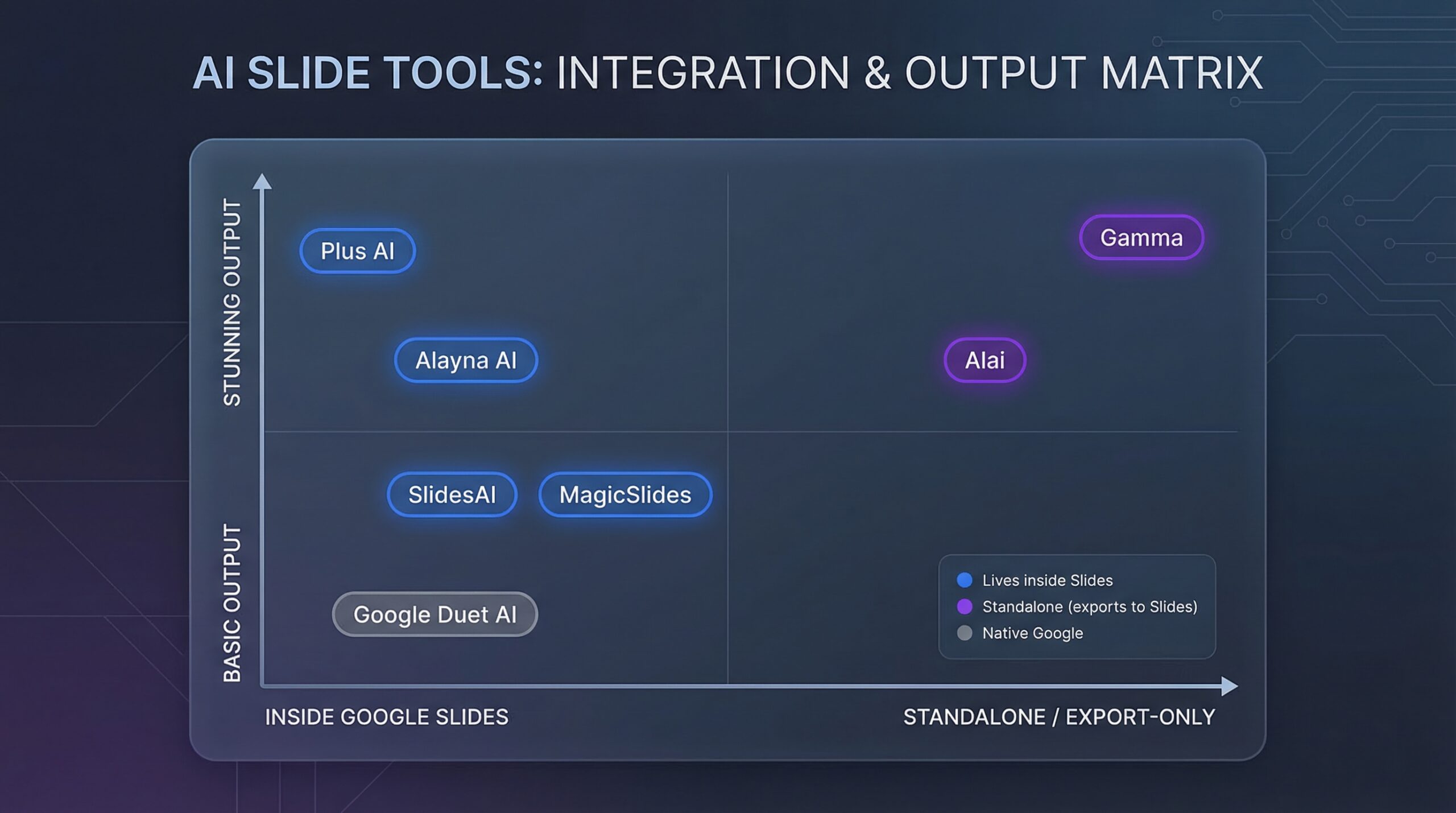
A ranked list is useful, but viewing each contender side by side makes the patterns obvious. We condensed dozens of data points into one compact grid. Scan for the feature you care about—design polish, branding control, or privacy posture—and the best-fit tool will stand out.
| Tool | Quality (5 = stellar) | Lives inside Slides? | Branding control | Stand-out AI trick | Free tier? |
| Plus AI | 4.5 | Yes | High (custom themes) | AI rewrite + live data | Trial (7 days) |
| SlidesAI | 3.5 | Yes | Low | 60-sec text-to-deck | Yes |
| MagicSlides | 3.5 | Yes + Web | Medium | URL/PDF/YouTube-to-slides | Yes (watermark) |
| Alayna AI | 3.8 | Yes | Low (edu themes) | Grade-level lesson builder | Yes (teachers) |
| Google Duet AI | 3.0 | Native | Uses corp template | Built-in image generator | Workspace add-on |
| Gamma | 4.7 | No (export only) | Low | Interactive scroll deck | Generous credits |
| Alai | 4.6 | No | Medium | Multiple layouts per slide | Beta free |
Remember, numbers tell only part of the story. The next sections unpack real-world strengths, deal-breakers, and pricing details so you can choose with confidence.
1. Plus AI: best overall add-on for Google Slides
Numbers on PlusAI.com back that up: over one million installs and an average 4.6-star rating from 900-plus reviews show the add-on reliably turns a plain prompt (or even a 20-page Google Doc) into a board-ready deck in minutes.
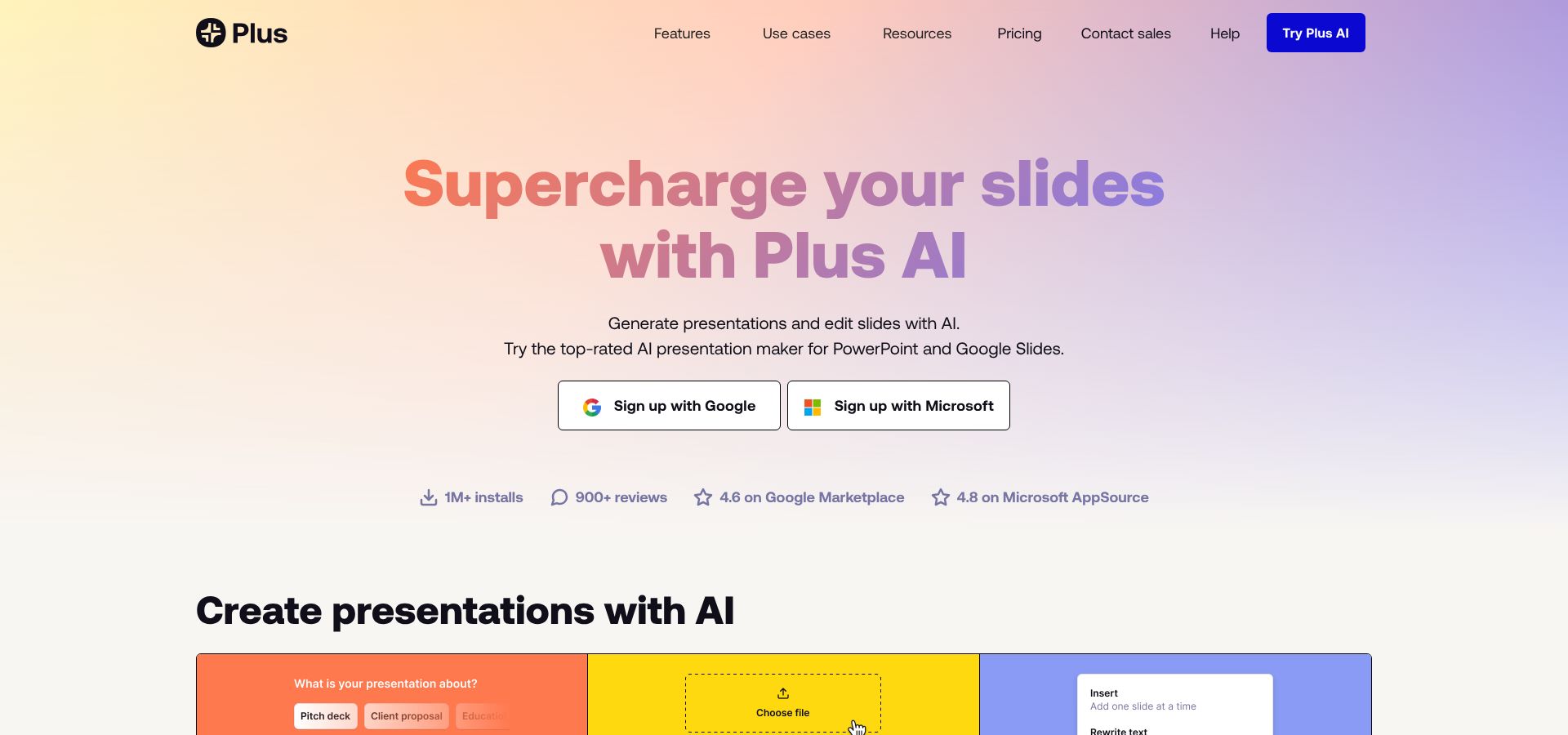
Plus AI for Google Slides homepage screenshot
Why Plus AI sits at the top.
Launch Plus AI inside Google Slides and the sidebar feels like a seasoned designer just pulled up a chair. In minutes it turns a plain prompt—or even a 20-page Google Doc—into a polished deck ready for the boardroom. Reviewers sum it up simply: “Plus AI is the best AI extension for Google Slides thanks to its advanced functionality, polished output slides, general ease of use, and an attractive price point.”
We watched the tool nail slide structure on the first try again and again. Titles land where they should, images match the story, and text never spills outside its boxes. You tweak, you don’t triage, which saves hours before every deadline.
Everything happens inside Google Slides. Real-time collaboration, version history, and your corporate template stay intact. No exports, no format fixes—just click Extensions → Plus AI → New presentation and edit the draft like any other slide.
Simple integration and workflow.
Plus AI keeps you in one tab. The add-on opens from the Extensions menu, appears in a right-hand panel, and every action—prompt, generate, edit—runs on the canvas you know.
That tight link matters. Your theme loads automatically, speaker notes stay editable, and version history tracks each AI change. Share the deck while Plus AI is open and teammates watch slides appear live instead of waiting for an export.
Because the tool talks directly to Google’s API, commands feel quick. We asked it to “rewrite slide 4 in a friendlier tone” and the bullets updated before the coffee cooled. Need a different look? Click Remix and Plus AI swaps layouts without breaking branding.
The workflow shines when you import raw content. Drop in a white paper, approve the auto-generated outline, and a full deck lands in under three minutes—charts, images, everything. Quick AI touch-ups then replace the usual hour of nudging text boxes.
In short, Plus AI feels like a native feature, not a bolt-on. That smooth experience keeps it at the top of our list.
Stand-out features that save real time.
Document-to-deck wizardry. Upload a strategy memo, earnings report, or a 2,500-word research PDF. Plus AI scans headings, finds the story arc, then maps each section to a slide with matching visuals. No copy-paste marathon required.
AI rewrite and Remix. Highlight stale bullets, click Rewrite, and the language tightens instantly. Tap Remix to cycle through alternative layouts—two-column, pro-con, timeline—without rebuilding the slide by hand.
Snapshot live data. Monthly metrics keep moving. Snapshot lets you embed a chart from your CRM that refreshes on open. Finance teams say this single feature cuts their “deck chasing” time in half.
Custom brand kits. Upload your font, palette, and logo once. Every new deck adopts those choices so rogue colors never sneak in.
Security that satisfies IT. Content processes on Google Cloud, and Plus AI is working toward SOC 2 compliance—enough reassurance for most corporate admins to approve a domain-wide install.
Together, these tricks turn Plus AI from a draft generator into a full production assistant that keeps decks accurate and on brand long after the first click.
Pricing, drawbacks, and ideal fit.
Plus AI offers a seven-day free trial, then plans start at ten dollars per month for unlimited slide generation. Twenty dollars adds document-to-deck import and AI image creation, while thirty per user locks brand kits and grants priority support. One hour of freelance design usually costs more.
No tool is perfect. The biggest gripe is the lack of a forever-free tier; students may lean toward SlidesAI instead. Some users call the default theme “too safe”—mostly blues and grays—but that disappears once you apply your own template.
If you work in Google Workspace and care about speed, polish, and brand consistency, Plus AI should be your first stop. It delivers enterprise-grade slides in minutes without a new platform to learn.
2. SlidesAI: best for fast first drafts
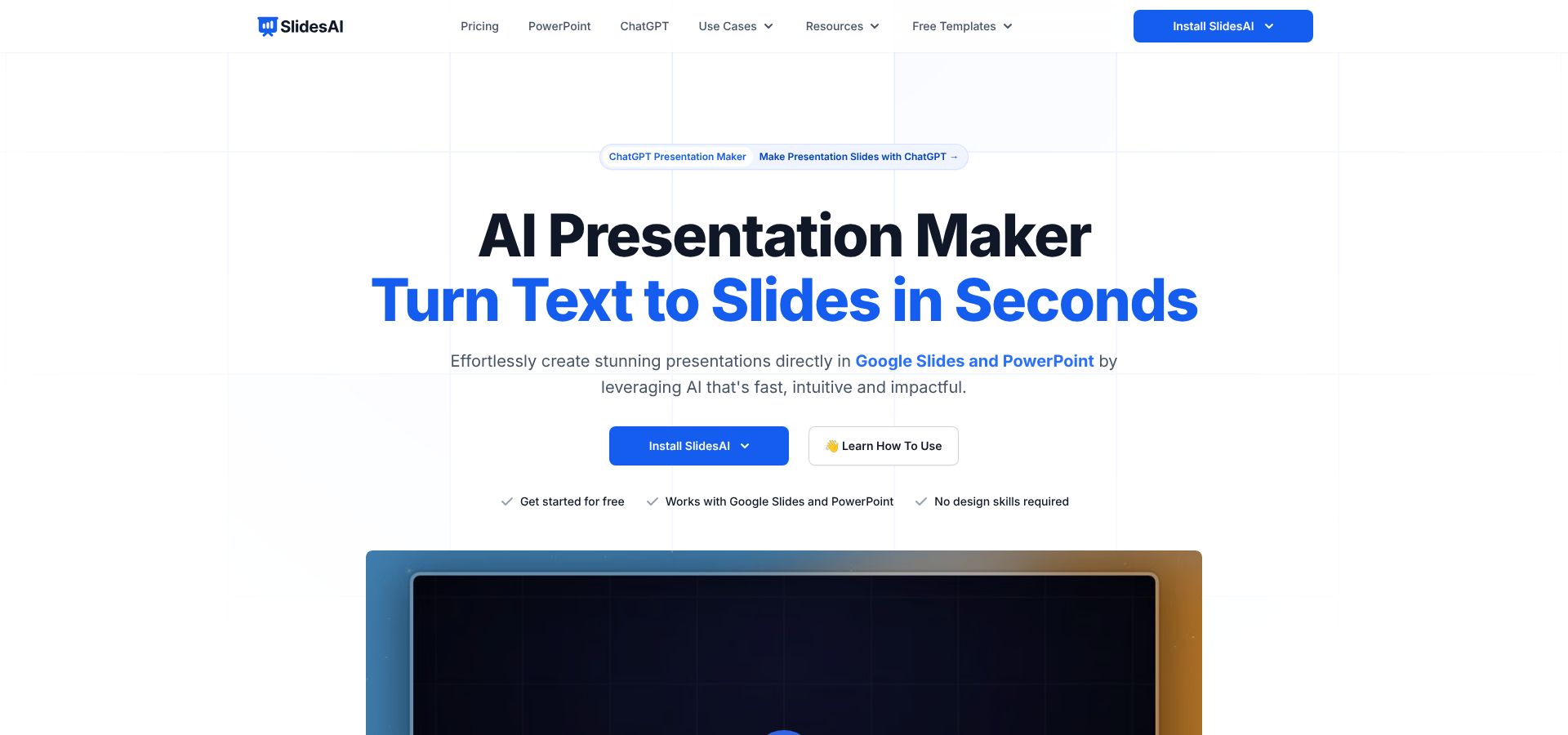
SlidesAI Google Slides add-on official site screenshot
Instant outline-to-deck in under a minute.
SlidesAI’s key edge is raw speed. Paste a paragraph, pick a tone, click Generate, and a full deck appears in less than sixty seconds. The add-on lives in a neat sidebar inside Google Slides, so there is no exporting, syncing, or new interface to learn. One prompt and the blank canvas vanishes.
That immediacy changes the mindset. Instead of staring at ten empty slides, you start with a structured outline: clear headlines, bullet points, and royalty-free visuals. From there you refine, reorder, or replace images with familiar Google tools. It feels like jumping straight to a second draft, which is why teachers and busy founders keep this add-on pinned.
Speed does not sacrifice clarity. SlidesAI condenses long input into concise talking points while preserving each key idea. The result is a framework that keeps presenters on message without drowning the audience in text.
In short, SlidesAI is the espresso shot of deck creation, perfect when you need a workable draft right now and can polish later.
Workflow, editing, and where speed shows cracks.
SlidesAI keeps the interface simple. Paste text, choose slide count, and a progress bar races across the sidebar. Seconds later your deck appears, already styled with your active Google theme. Because everything happens inside Slides, adding speaker notes, re-ordering slides, or swapping images follows the clicks you already know.
The editing tools stay lightweight. A Regenerate button rewrites a slide, a Theme picker swaps color schemes, and that is about it. The philosophy: finish the heavy lift quickly, then let you fine-tune manually.
That trade-off shows in design depth. Tech & Learning called SlidesAI “fast but flat,” noting that output “looks plain and often needs a style upgrade before presenting.” We saw the same. Text aligns neatly, yet visuals feel generic and layouts seldom surprise.
Cost is where SlidesAI wins hearts. A free basic tier lets you create three small decks each month, while the Pro plan sits around six to ten dollars—cheaper than most Midtown lattes. One comparison summed it up: “SlidesAI is cheaper and faster, but the slides often look generic.”
Who should use it? Anyone who values a near-instant draft over perfect polish—students racing toward a deadline, founders sketching an investor pitch, or teachers who prefer to add their own images. If you can spare a few minutes on aesthetics, SlidesAI’s speed dividend is worth the modest price.
3. MagicSlides: best for turning existing content into slides
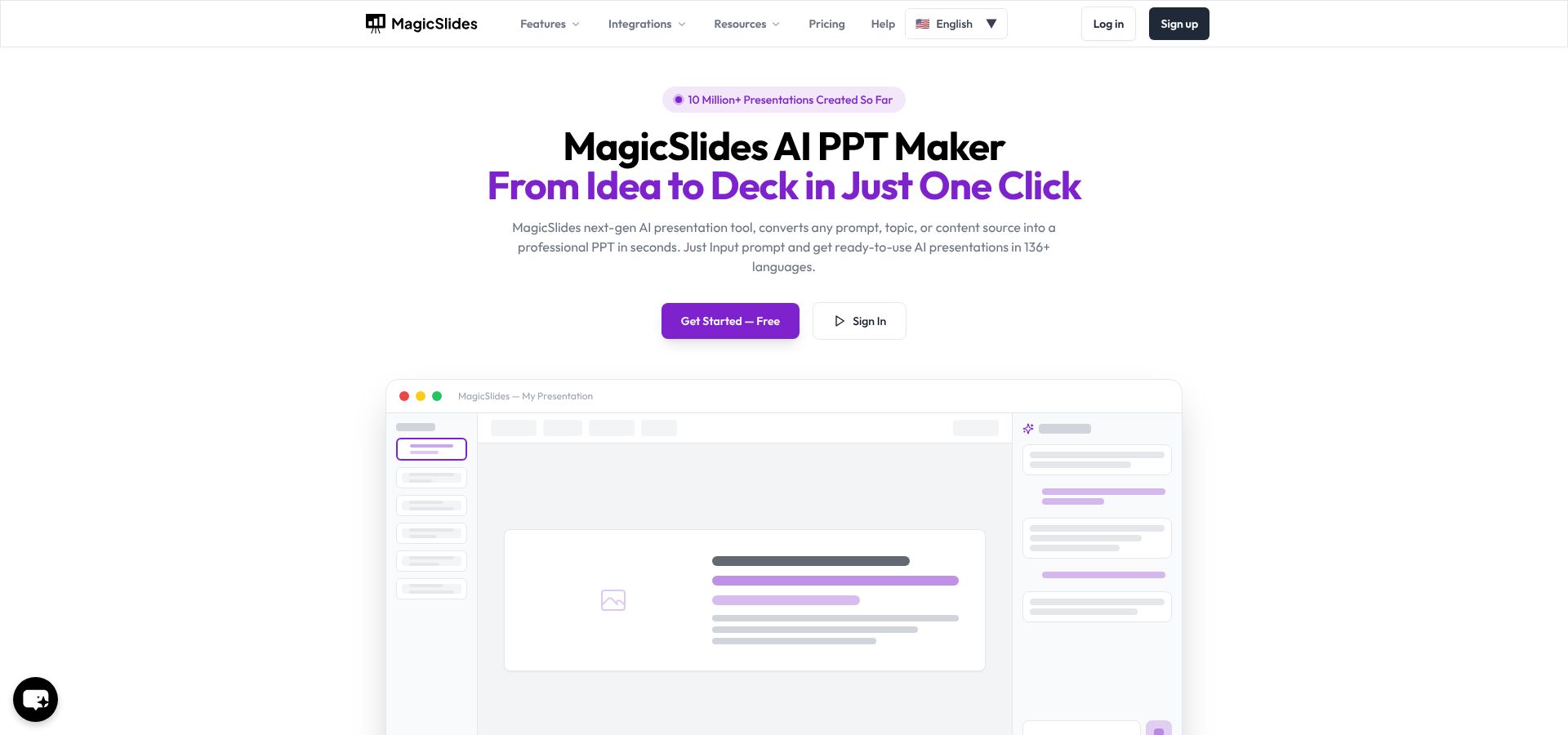
MagicSlides AI presentation converter homepage screenshot
From blog post, PDF, or YouTube to deck in one click.
MagicSlides feels less like a Slides add-on and more like a Swiss Army knife for content conversion. Drop in a URL, paste a block of text, or add a YouTube link. Seconds later your screen fills with slides that mirror the source: titles align with headings, bullet points echo key takeaways, and screenshots land where visuals should sit.
This flexibility matters when deadlines press and source material already exists. Instead of retyping a white paper or capturing video frames, you feed MagicSlides the raw file and let the AI handle the draft. Teachers import a chapter PDF, marketers feed a long-form blog post, and analysts paste a data-rich Google Doc. Each group ends up with a neatly structured deck ready for final polish.
MagicSlides plays two roles. Inside Google Slides the sidebar handles quick tasks like “create five slides from this paragraph.” For deeper work the standalone web app excels. There you upload whole documents, adjust slide length, and preview layouts before exporting back to Slides. Having both modes means you never feel locked into one workflow.
Design breadth sits in the middle of the pack. A library of more than 500 templates keeps decks from looking cookie-cutter, yet you still fine-tune fonts and images for high-stakes presentations. Think of MagicSlides as a reliable draft producer, not a complete design stylist. It carries you 80 percent of the way, leaving the last aesthetic touches to your taste.
Integrations, limitations, and best use cases.
MagicSlides earns extra credit for its growing list of integrations: Figma for design assets, Visme for infographics, and Airtable for content ops. Power users stitch these connectors together in zaps and reclaim hours once spent copying charts or screenshots between apps.
That convenience comes with a privacy note. Because MagicSlides processes content on its own servers and relies on third-party APIs, security-minded teams should clear it with IT before sending sensitive data. Unlike Plus AI’s published SOC roadmap, MagicSlides shares only basic encryption details on its site.
Design quality sits in the “good but not wow” bracket. The AI nails hierarchy but sometimes misplaces images or stretches icons, so you’ll likely adjust spacing and swap a stock photo or two. The free tier also stamps a small watermark on every slide, a gentle push toward the nine-dollar monthly plan that removes branding and lifts slide limits.
So, when does MagicSlides shine? Use it any time you already have rich source material and need a deck fast: content marketers repurposing blog posts, lecturers turning research articles into teaching slides, or sales teams converting a case-study PDF into a client-ready overview. It converts raw information into a structured starting point you can refine instead of designing from a blank canvas.
4. Alayna AI: best for teachers and lesson planning
Grade-appropriate slides in a single prompt.
Alayna AI tackles a problem every educator knows: turning dense curriculum notes into slides students will actually read. Type “photosynthesis for 5th grade, eight slides” and watch the add-on build a deck that defines terms, shows a labeled diagram, and ends with a two-question quiz. The language matches the reading level, visuals feel playful, and speaker notes suggest class discussion prompts.
Because it lives inside Google Slides, Alayna fits the workflow teachers already use with Classroom. Click Extensions → Alayna AI → Generate and the deck appears, with sharing settings unchanged. Need advanced placement detail? Re-prompt with “11th grade, add Calvin cycle detail” and the slides update in place.
Content sources teachers care about.
Alayna accepts more than plain text. Paste a YouTube link, drop in a PDF worksheet, or point it to a trusted site. The AI reads transcripts and headings, then maps key points to a slide sequence. Prep time shrinks to review time; you spend minutes approving order, not hours copying and pasting.
Strengths, gaps, and the right classroom fit.
Strengths
- Grade-level awareness. Choose any K-12 band and tone adjusts automatically.
- Education-centric themes. Colorful templates, large fonts, and friendly icons keep younger learners engaged.
- Teacher pricing. A permanent free tier (with deck limits) lets most instructors adopt it without a budget request.
Gaps
- Style is school-centric; for a board-room look you’ll swap templates.
- Complex topics such as multivariable calculus need a content pass; Alayna can oversimplify.
- Long textbook sentences sometimes overflow a placeholder, so a quick trim is still needed.
Lean on Alayna when lesson planning threatens to steal your evening. It drafts the slides—quiz included—so you can focus on labs, group work, or grading, not formatting text boxes.
5. Google Slides Duet AI: best native option for security-first teams
AI help, no add-on required.
If your IT department blocks every third-party plug-in, Google’s own Duet AI is a lifeline. The features sit directly in Slides: a Help me write box for quick bullet points, a Help me visualize button that generates images, and a limited alpha of full-deck creation for selected Workspace customers.
Because the AI runs inside the same Google Cloud that stores your files, content never leaves the corporate walled garden. That single fact is why many enterprises approve Duet while rejecting external tools.
Tech & Learning’s March 2026 review called the current build “convenient but still basic; designs look plain and full-deck generation remains in early testing.” We found the same. The assistant outlines topics well, yet layouts stick to simple title-and-bullet formats and often need a design pass.
Pricing is simple: Duet AI comes bundled with the Gemini add-on for Workspace at thirty dollars per user each month. If your org already pays, the feature feels free. If not, it is the priciest tool on this list.
Where Duet AI excels and falls short.
Strengths
- Zero installation. Open Slides, click the star icon, start prompting.
- Honors your existing theme, so every generated slide matches the brand kit.
- Enterprise privacy and GDPR compliance included.
Limitations
- Full deck generation is still gated; many users only get text and image helpers.
- Design suggestions feel utilitarian, not presentation-ready.
- No free tier for personal Gmail accounts.
Choose Duet AI when data governance rules the day or when your team already pays for Gemini. For everyone else, third-party add-ons still offer richer layouts and faster updates.
6. Gamma: best for stunning visual narratives
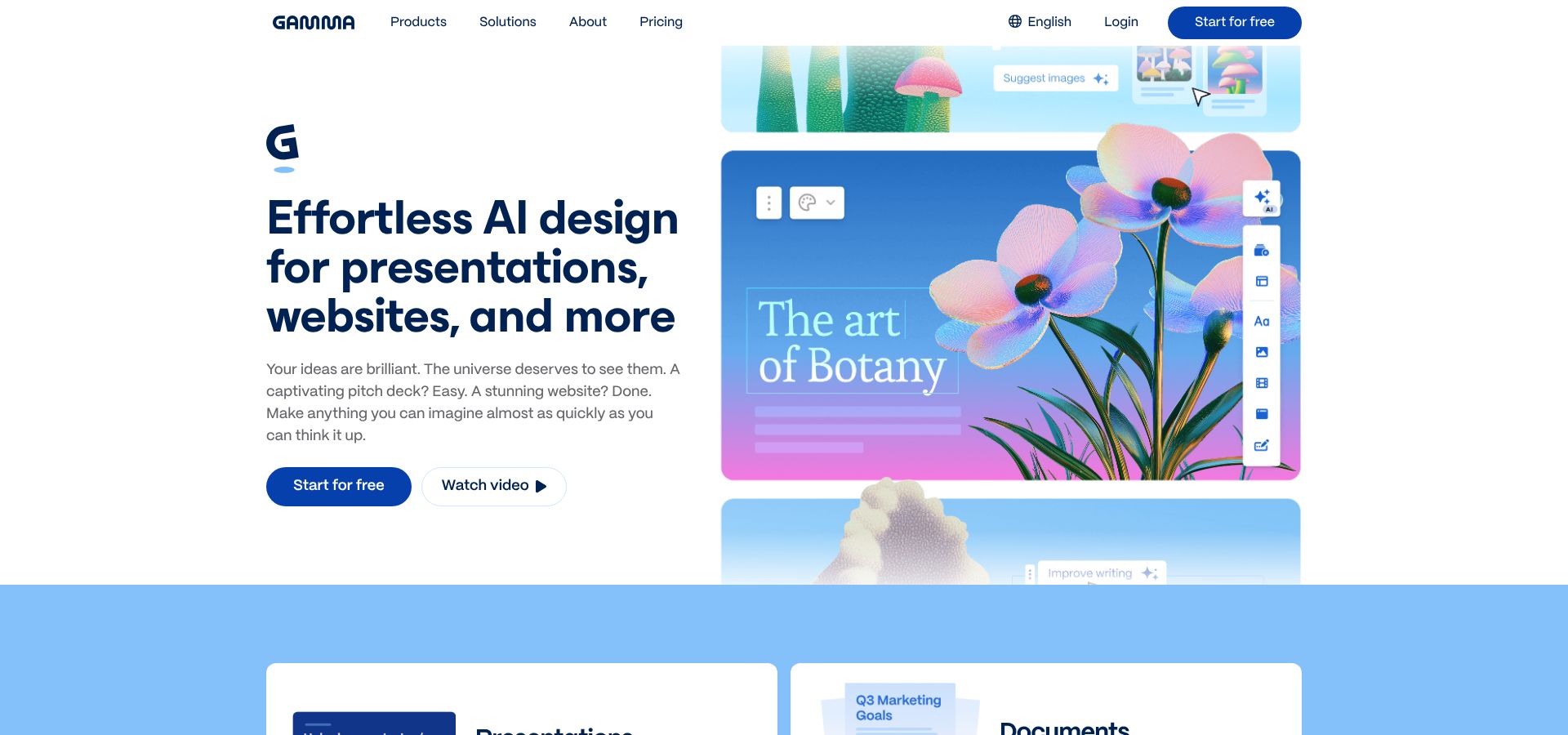
Gamma AI presentation tool homepage screenshot showing design-first decks
Designer-level slides without opening a design tool.
Gamma is not an add-on; it is an AI-native presentation studio that runs in your browser. Type a short brief, such as “launch roadmap for Series B investors, bold, modern style,” and Gamma delivers a scrollable deck that looks like a creative agency crafted it over the weekend. Full-bleed images, balanced white space, and smart typography appear automatically; you fine-tune copy, not kerning.
The secret is Gamma’s template engine. Instead of pushing text into static layouts, the AI assembles each slide from modular blocks, then applies a cohesive theme that feels hand built. In our side-by-side tests it was the only tool that needed almost no design edits before a live pitch. Tech & Learning reached the same verdict, calling Gamma “presentation-ready with only light refinements.”
Interactive elements take the experience further. Click any bullet and it can expand into sub-slides, letting you hide detail until the audience asks. Export to Google Slides or PowerPoint when you need a traditional file, or share the native Gamma link when you want analytics on who viewed each section.
Strengths, trade-offs, and the perfect use case.
Strengths
- Instant wow factor. Gamma selects striking images and balanced layouts that look client-ready on the first render.
- Interactive storytelling. Nested slides and accordions let you hide backup data until needed, keeping the main flow crisp.
- Shareable analytics. Send a web link and see which investor lingered on the financials; follow-ups gain data, not guesses.
- Generous free credits. New accounts receive hundreds of creation credits, enough for several full decks before paying.
Trade-offs
- No Google Slides sidebar, so you add an export step and may see minor font shifts.
- Brand control is limited to preset fonts and color palettes; strict style guides require manual tweaks after export.
- Data lives on Gamma’s servers, which may not pass strict confidentiality rules.
Choose Gamma when you need to impress: pitch decks, conference keynotes, or marketing one-pagers where visual quality must stand out. Draft inside Gamma, then export to Slides only if collaboration demands it. For routine internal updates, a lighter add-on may be faster and cheaper.
7. Alai: best newcomer for design control
Multiple layout options per slide, context-aware edits.
Alai is the fresh face shaking up AI slide design. Instead of handing you one static draft, it offers several fully designed variations for every slide. You flip through the options—image left or right, icon grid or bold quote—pick your favorite, and move on. That micro-choice flow feels closer to art direction than automation.
Early adopters rave about coherence. When you add a “market size” slide, Alai notices the data and proposes a chart style that matches the palette it introduced two slides earlier. If you shorten a headline, surrounding elements reflow automatically, so alignment stays tidy. One power user on Reddit put it simply: “Best overall if you care about design and speed without compromising on either.”
Behind the scenes Alai tracks your narrative arc. Ask it to insert “competitive landscape” after slide four and it not only builds the slide but trims overlap on slide five to keep the story tight. Few AI tools show that level of across-deck awareness.
Alai runs as a standalone web app for now. You craft in its quick editor, then export to PowerPoint or Google Slides. The export held up well in our tests, though custom fonts sometimes switch to safe defaults. A promised Slides sidebar is on the roadmap; if delivered, it could push Alai even higher next year.
How to choose the right AI slide partner
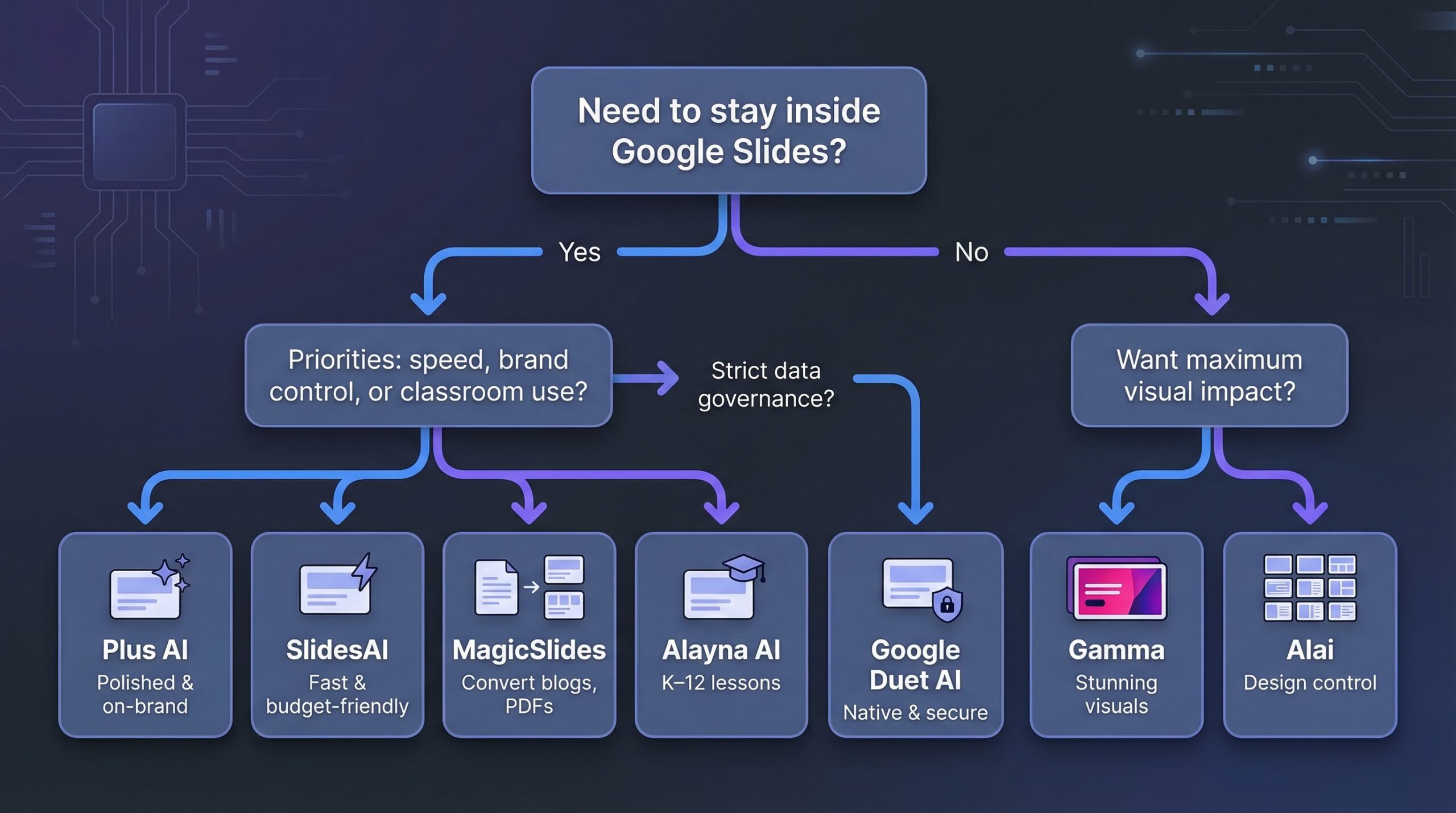
Tool lists are handy, but a quick decision path is better.
Begin with one question: Do you need to stay inside Google Slides for real-time collaboration or security?
If the answer is yes, focus on Plus AI, SlidesAI, MagicSlides, or Alayna AI. Plus AI excels in polish and brand control, SlidesAI wins on cost and speed, MagicSlides converts rich source files, and Alayna targets K-12 lessons.
If you can work in a separate app and import later, consider design ambition. Gamma and Alai create the most striking visuals. Tech & Learning’s 2026 teardown called Gamma “presentation-ready with only light refinements,” while Reddit power users praised Alai for “design and speed without compromise.”
Next, weigh data sensitivity. Enterprise IT teams often choose Google’s Duet AI because content never leaves Workspace, even though its layouts look plain. Others balance privacy with features; Plus AI publicly shares its SOC-2 timeline, while MagicSlides lists only basic encryption details.
Finally, check price. SlidesAI and Gamma offer the largest free allowances, Plus AI and MagicSlides sit near ten dollars per month, Alai is free during beta, and Duet AI adds about thirty dollars per user to a Workspace plan.
Follow these checkpoints and you will land on a tool that fits both your workflow and your budget in less than five minutes.