You might forget your Android unlock pattern after not using it for a while. You can also become locked out by entering the wrong PIN too many times. As a result, you may be locked out of your device and unable to access your apps, files, or personal data.
In such situations, if you wonder how to unlock an Android phone, this practical guide will help you out. Learn what the lockout means and how Dr.Fone – Screen Unlock (Android) outshines traditional unlock methods.
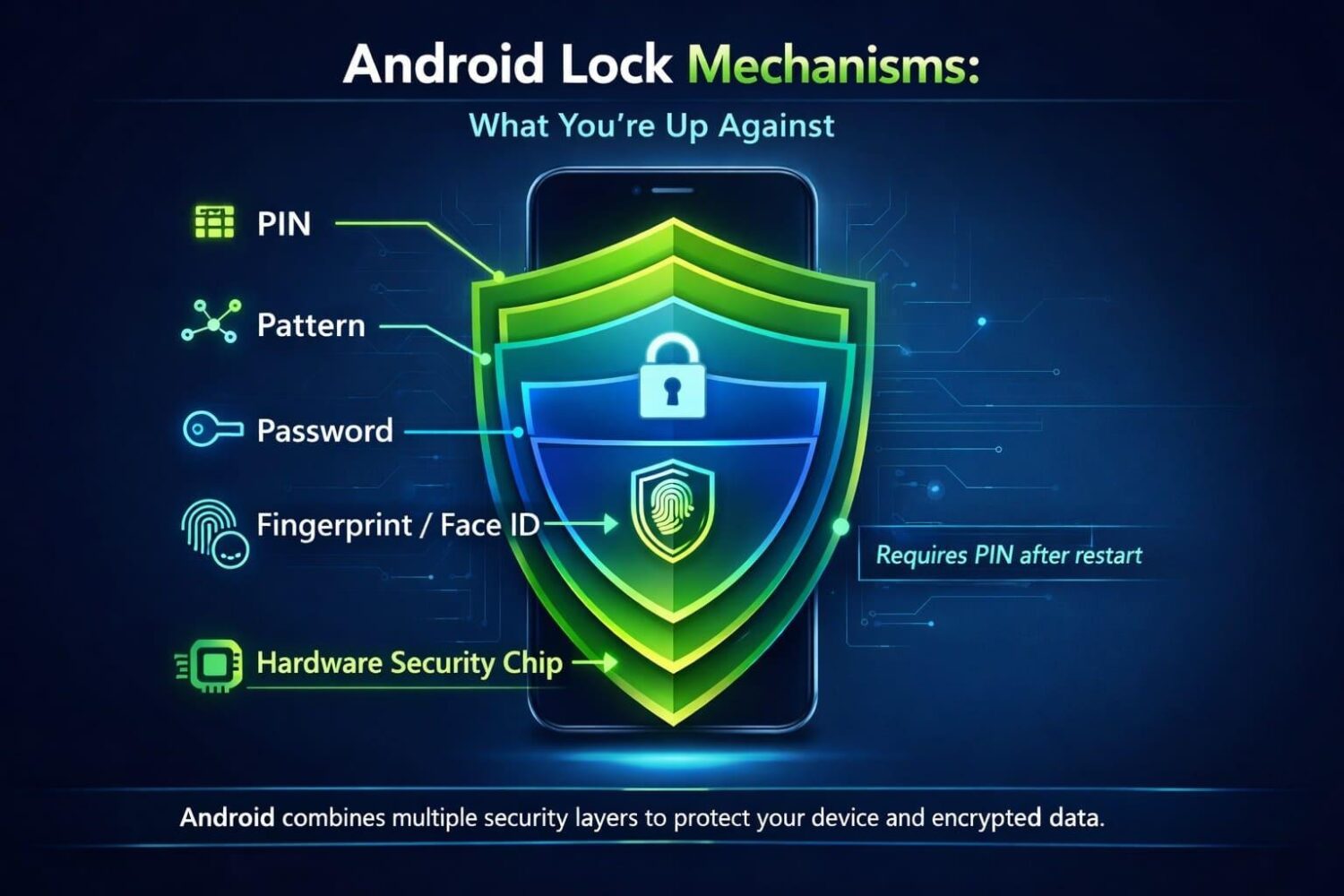
Part 1. Android Lock Mechanisms: What You’re Up Against
Android phones use PINs, patterns, passwords, and biometrics to protect your device. However, forgetting your screen lock credentials can leave you locked out. Your PIN, pattern, or password helps protect encrypted data, making it inaccessible without the correct credentials. Biometrics provide convenient access but still require your primary screen lock after a restart or certain security events.
These lock options are protected by Android’s built-in security features, including hardware-backed protection on supported devices. Hence, the basic tricks cannot bypass any Android screen lock.
Part 2. Will Your Data Survive the Unlock Process?
When an Android mobile unlock attempt is made, your local data will be removed right away. This is because modern Android devices automatically encrypt your storage via lock credentials. So, when you bypass biometric or PIN protection with a factory reset, it deletes the encryption keys and wipes the device.
That means any local files, photos, or app data that weren’t backed up will be permanently lost. Nonetheless, your contacts, emails, and photos associated with your Google Account will remain safe on Google’s remote servers. Once synced to your Google account, you can download them again as you log in after the reset, according to Google.
Part 3. Comparing Solutions — Official Routes vs Faster Alternatives
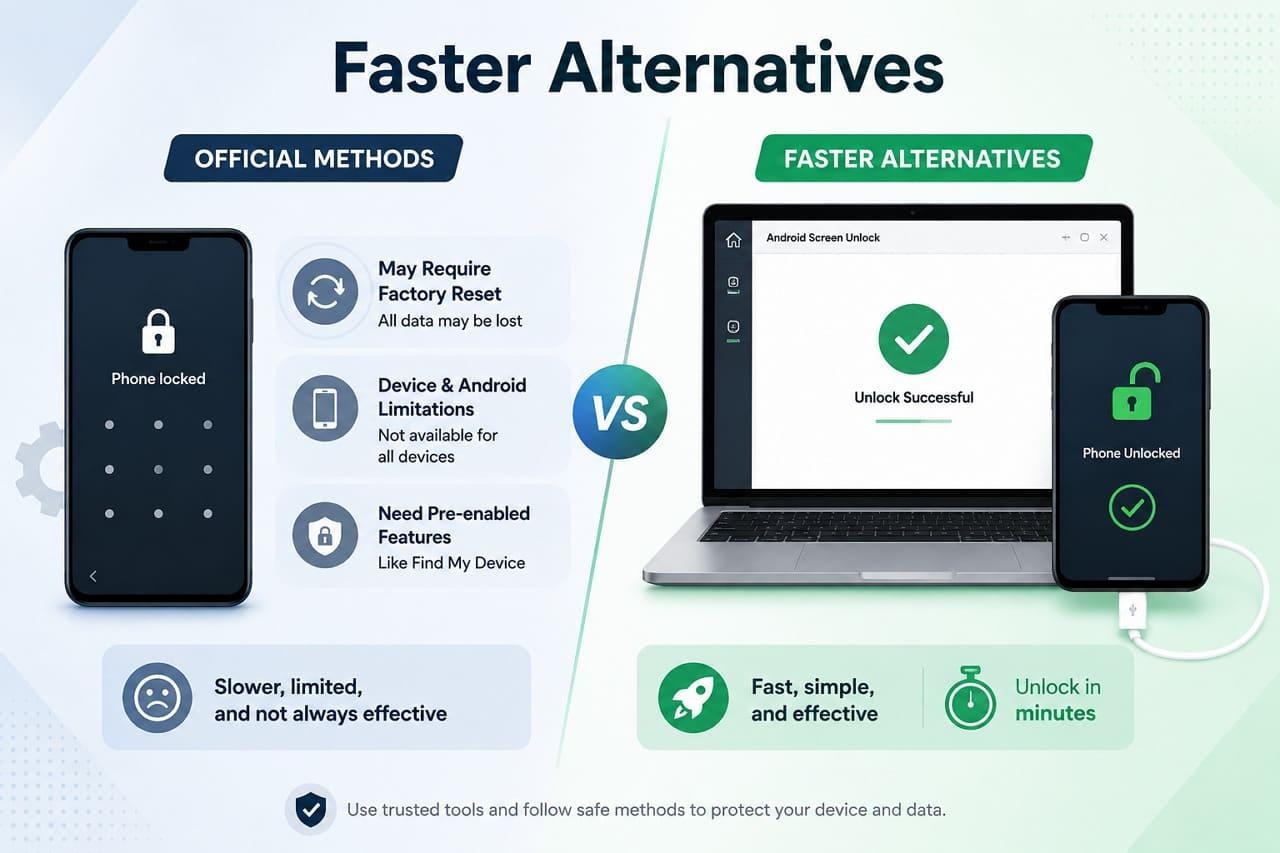
For those wondering how to unlock an Android phone, it’s important to understand the available options. Some official methods require a factory reset or have device and Android version limitations. Others only work if you previously enabled features such as Find My Device.
On the other hand, Android screen unlock software offers a faster alternative for many supported devices. Using a USB connection, they can remove supported screen locks in just a few minutes with step-by-step guidance, making the process easier for most users.
Part 4. How to Unlock Your Android Phone with Dr.Fone
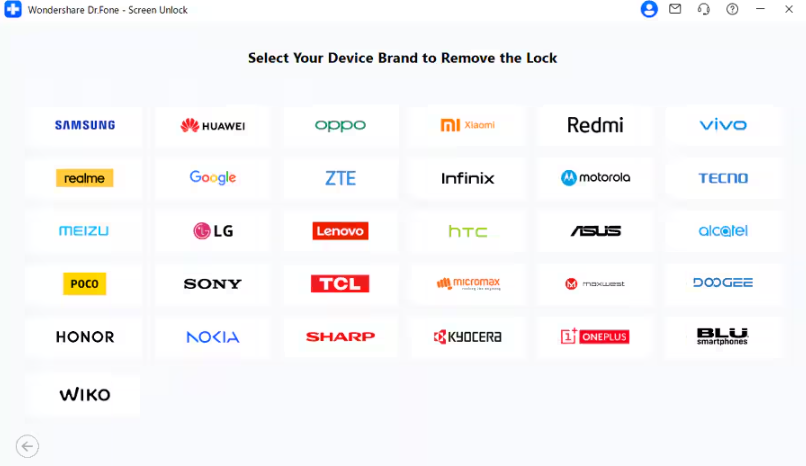
To unlock an Android Phone with software, use Dr.Fone – Screen Unlock (Android), which supports 29 brands for screen lock removal and 19 for FRP. It supports multiple Android screen lock types, and its AI-powered FRP removal feature is available for Samsung devices running Android 16, including the Galaxy S26 and S25 series. It is among the first tools to offer this capability for supported Samsung Android 16 devices.
In addition to modern models, it also supports legacy phones, like TECNO, Infinix, and Itel, for FRP. With support for over 2000+ Android phones and tablets, Dr.Fone enables users to use a special mode on most Android models to unlock the device automatically. For all the locks and models, the guides are separate and detailed, and can be unlocked without any technical skills required.
Key Features
- Weekly Updates: The tool receives weekly updates to improve compatibility with newer Android phones and tablets. Recent updates have added support for Samsung Android 12 screen unlock and Wiko devices.
- Online FRP Bypass: Samsung Snapdragon device users can also remove the FRP online, and the simple interface makes navigation effortless.
- Screen Unlock Without Data Loss: On Samsung and LG models, you can remove any screen lock without data loss; other tools are limited to Samsung only.
- US Model and Chipset Support: The tool supports all the US Samsung models and chipsets, like MTK / Qualcomm / Exynos.
Dr.Fone Screen Unlock Guide for Most Android Device Brands
For the Android mobile unlock, review this section and learn how this tool automates the process using Special Mode:
Step 1. Consider the Unlock Android Screen Option
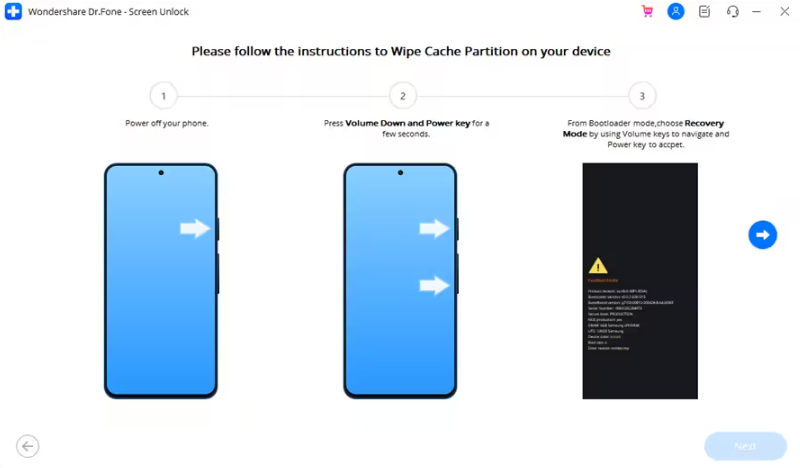
In the Screen Unlock tool for Android, select the “Unlock Android Screen” option and choose the Android brand in the new interface. Following this, you need to click the “100% Remove Screen Lock” feature.
Step 2. Access Special Mode to Unlock with Dr.Fone
After that, you will be automatically directed to activate the “Special Mode,” where Dr.Fone will unlock the device within 10 minutes, without any manual hassle.
Device Unlocked — What to Do Next
To sum up, hardware chips and data encryption can cause regular unlock tricks to fail. As a result, you can use Dr.Fone – Screen Unlock (Android) to unlock an Android Phone in Special Mode. After the device is unlocked, log back into the primary Google account to restore the synced data. Finally, prevent future issues and set up a screen lock with easy, accessible PINs and biometrics.