
A few of the factors contributing to Gmail’s widespread use are its ability to serve a wide range of users and its abundance of features, which make email management simple. Although features like categories, labels, spam filtering, and filters are fantastic, there is one more useful feature that isn’t used much. It is called Rules, and it does precisely as its name would imply. This is the Gmail rule creation process.
Only Gmail Web can be used to set rules, and it’s quite simple to do so. When you receive an email, there are several rules to follow, such as labeling, deleting, forwarding, staring, and many more.
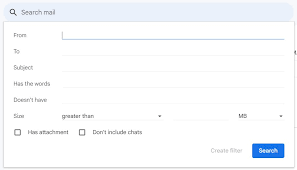
From the Gmail Search Bar, Create a rule
Creating a rule in Gmail can only be done online. On the iOS or Android versions of the Gmail app, rules cannot be created.
- Navigate to the Gmail website and select the Settings icon from the search bar.
- You can begin by inputting the From or To address for which you wish to construct the Rule/Filter in order to establish a filter.
- After that, you can designate the following parameters for applying a rule: Subject contains the phrases “has,” “doesn’t have,” “size,” and “date.”
- To select where you want Gmail to look, click the Search dropdown menu.
- Finally, to continue, click Create filter.
- Once completed, the rule should be applied to all incoming and current emails, depending on the type.
Create a Rule Based on a Specific Email
Additionally, a message can be used to create a rule. As a result, the sender’s email address will automatically appear in the From field. This is how you do it:
- On the Gmail website, open an email and select the 3-dots symbol located in the upper row.
- Select Filter similar messages from the overflow menu by clicking on it.
- Additional filter options will show up on the screen. Here, select your preferred selections, fill in the blank fields, and click Create filter.
- Now, when Gmail discovers emails that meet your criteria, it will prompt you to choose the tasks you want it to perform. Here, tick the boxes that you wish to open, and if necessary, select the next set of alternatives.
- Click Create filter when you’re done.
Modify or Remove Gmail Rules
Here’s how to remove Rules from Gmail that you no longer wish to apply to emails once you’ve established them.
- Go to the Gmail website and select the cogwheel icon located in the upper right corner.
- Select “View all settings.”
- Navigate to the Filters and Blocked Addresses tab in Gmail Settings.
- Find the rule you wish to change here, then select Edit or Delete.